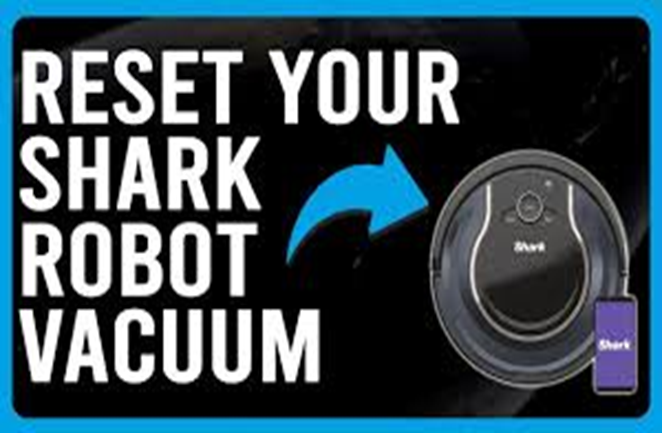
Shark robot vacuums help keep your home clean. Sometimes, you might need to reset the vacuum. A factory reset can fix many problems. It clears settings and starts fresh.
What Is a Factory Reset?
A factory reset means restoring the vacuum to its original settings. This means all your preferences and data will be deleted. It is like when you first bought the robot.
Why do you need a factory reset? Sometimes, the vacuum may not work well. It might get stuck or stop connecting to your phone. Resetting can help fix these problems.
Things to Know Before Resetting
- Make sure the vacuum is charged.
- Reset will erase saved maps and schedules.
- You will need to set up the vacuum again.
- Keep your Shark app ready if you use one.
After a factory reset, the vacuum acts like new. You can connect it again to your phone or Wi-Fi.
How to Factory Reset Shark Robot Vacuum
Follow these simple steps to reset your Shark robot vacuum.
Step 1: Turn Off The Vacuum
Find the power button on your Shark robot vacuum. Press and hold it until the vacuum turns off. This usually takes 3 to 5 seconds.
Step 2: Press And Hold The Dock And Spot Buttons
Look for two buttons on the vacuum: Dock and Spot Clean. Press and hold both buttons at the same time.
Keep holding them for about 10 seconds. You will hear a sound or see lights flash. This means the reset process started.
Step 3: Release The Buttons
After the sound or light flash, let go of the buttons. The vacuum will restart. Wait a few moments while it resets.
Step 4: Power On The Vacuum
Press the power button again to turn the vacuum on. Now, it is reset to factory settings.
Alternative Method Using the Shark App
If you use the Shark app, you can reset the vacuum there. Here is how:
- Open the Shark app on your phone.
- Select your robot vacuum from the device list.
- Go to Settings or Device Info.
- Find the option for Factory Reset or Reset Device.
- Confirm your choice. The vacuum will start resetting.
After reset, you will need to set up the vacuum again in the app.

Credit: www.youtube.com
Credit: medium.com
What to Do After Factory Reset
Once the vacuum resets, follow these steps:
- Charge the vacuum fully before use.
- Connect the vacuum to Wi-Fi again.
- Set up your cleaning schedule.
- Map your home if your model supports it.
Setting up again helps your robot vacuum work well.
Tips for Using Your Shark Robot Vacuum
- Keep the charging dock in a clear place.
- Empty the dustbin regularly.
- Clean the brushes and wheels to avoid jams.
- Check for software updates in the Shark app.
- Reset only when you have problems.
Good care helps your robot last longer and clean better.
Common Problems Fixed by Factory Reset
| Problem | How Reset Helps |
|---|---|
| Vacuum does not connect to Wi-Fi | Clears old network info, allows fresh setup |
| Robot stuck or stops often | Resets sensors and software for better operation |
| App does not control vacuum properly | Resets device connection to the app |
| Robot behaves strangely or errors occur | Restores original settings, removing glitches |
When Not to Factory Reset
Resetting is not needed for small problems. Try these first:
- Restart the vacuum by turning it off and on.
- Check the dustbin and clean it.
- Make sure brushes are free of hair and dirt.
- Update the vacuum’s software in the app.
If problems continue, then try the factory reset.
Summary
Factory reset can help fix many issues with your Shark vacuum. It clears all settings and lets you start fresh. Follow the steps carefully to reset safely.
Remember, a reset deletes saved data. You must set up your vacuum again. Use the Shark app or buttons on the vacuum to reset.
Taking good care of your robot keeps it working well. Reset only when needed. Enjoy a clean home with your Shark robot vacuum!
Frequently Asked Questions
How Do I Reset My Shark Robot Vacuum To Factory Settings?
Press and hold the clean button for 10 seconds until the light blinks. The vacuum will restart and reset to factory settings.
Will A Factory Reset Delete All My Shark Vacuum Maps?
Yes, resetting erases all saved cleaning maps and schedules. You will need to set them up again.
Can A Factory Reset Fix My Shark Vacuum’s Connectivity Issues?
A reset often solves Wi-Fi and app connection problems. It clears previous network settings for a fresh start.
How Long Does A Shark Robot Vacuum Factory Reset Take?
The reset process usually takes about 30 seconds to complete. The vacuum restarts automatically after that.
As an Amazon Associate, I earn from qualifying purchases.